It’s been on my to-do list for some time to try setting up Prometheus to monitor WebSphere Liberty. There is a JMX Exporter which makes the job pretty simple even if there ended up being more steps than I had originally hoped.
My first pass was to try to configure the exporter as a Java agent but sadly the current Java client attempts to use some com.sun packages that don’t work with an IBM JRE. I started down the path of rebuilding our Liberty image on OpenJDK but, when I discovered that the Java agent actually uses Jetty to expose its HTTP endpoint I decided that I really didn’t want that bolted on to the side of my Liberty process! Ideally I’d get the Java client fixed and then create a Liberty feature to expose the HTTP endpoint but that will have to wait for another day… This time round I decided to configure the exporter as an HTTP server in a side-car container.
The first step was to create a Liberty image with monitoring enabled using the following Dockerfile:
FROM websphere-liberty:webProfile7
RUN mkdir -p /config/configDropins/overrides \
   && echo "monitor-1.0" \
     "localConnector-1.0" \
     > /config/configDropins/overrides/monitoring.xml
And then build and run the image and extract the JMX URL:
docker build -t wlpjmx https://git.io/vPOLj
docker run -p 9080:9080 -p 9443:9443 -p 5556:5556 --name wlp wlpjmx
JMX_URL=$(docker exec wlp cat /opt/ibm/wlp/output/defaultServer/logs/state/com.ibm.ws.jmx.local.address)
Note that, in addition to the normal HTTP and HTTPS ports, we’ve exposed a port (5556) that the exporter container is going to use.
Next we need to build the JMX exporter JAR file using maven:
docker run --name build maven sh -c \
  "git clone https://github.com/prometheus/jmx_exporter && mvn -f jmx_exporter package"
docker cp build:jmx_exporter/jmx_prometheus_httpserver/target/jmx_prometheus_httpserver-0.7-SNAPSHOT-jar-with-dependencies.jar .
And we also need a config file for the exporter that uses the JMX_URL that we extracted from the Liberty image earlier:
cat <  config.yml
---
jmxUrl: $JMX_URL

rules:
- pattern: ".*"
EOF
The pattern here is subscribing us to all the available MBeans. The following Dockerfile constructs an image with these two artifacts based on the openjdk image from Docker Hub:
FROM openjdk
COPY jmx_prometheus_httpserver-0.7-SNAPSHOT-jar-with-dependencies.jar config.yml /
CMD ["java","-jar","jmx_prometheus_httpserver-0.7-SNAPSHOT-jar-with-dependencies.jar","5556","config.yml"]
Note that we tell the exporter to run on the same port that we exposed from the Liberty container earlier. Now we build and run the image. We use the network from our Liberty container so that the exporter can connect to it on localhost. The curl should retrieve the metrics being exposed by the exporter.
docker build -t exporter .
docker run -d --net container:wlp exporter
curl localhost:5556/metrics
The last step is to run Prometheus. Create a prometheus.yml file to provide the scrape configuration:
scrape_configs:
  - job_name: 'liberty'
    static_configs:
      - targets: ['wlp:5556']
We can then run the standard Prometheus image from Docker Hub:
docker run --link wlp:wlp -p 9090 \
  -v $(pwd)/prometheus.yml:/etc/prometheus/prometheus.yml \
  prom/prometheus
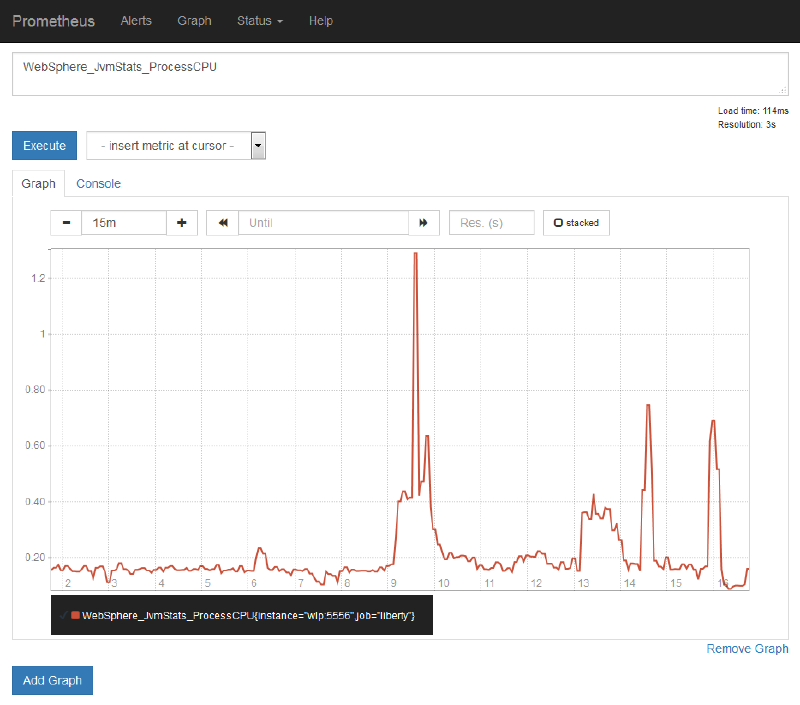
You can then access the Prometheus UI in your browser on port 9090 of the host where your Docker engine is running. If you’re new to Prometheus, try switching to the Graph tab, entering the name of a metric (e.g. WebSphere_JvmStats_ProcessCPU) and then hit Execute. If all is well, you should see something along the following lines:
If the metrics don’t look all that exciting then try applying a bit of load to the server, such as using the siege tool:
docker run --link wlp:wlp rufus/siege-engine \
  -q -c 50 -r 20 -d 1 http://wlp:9080